 Aller au contenu








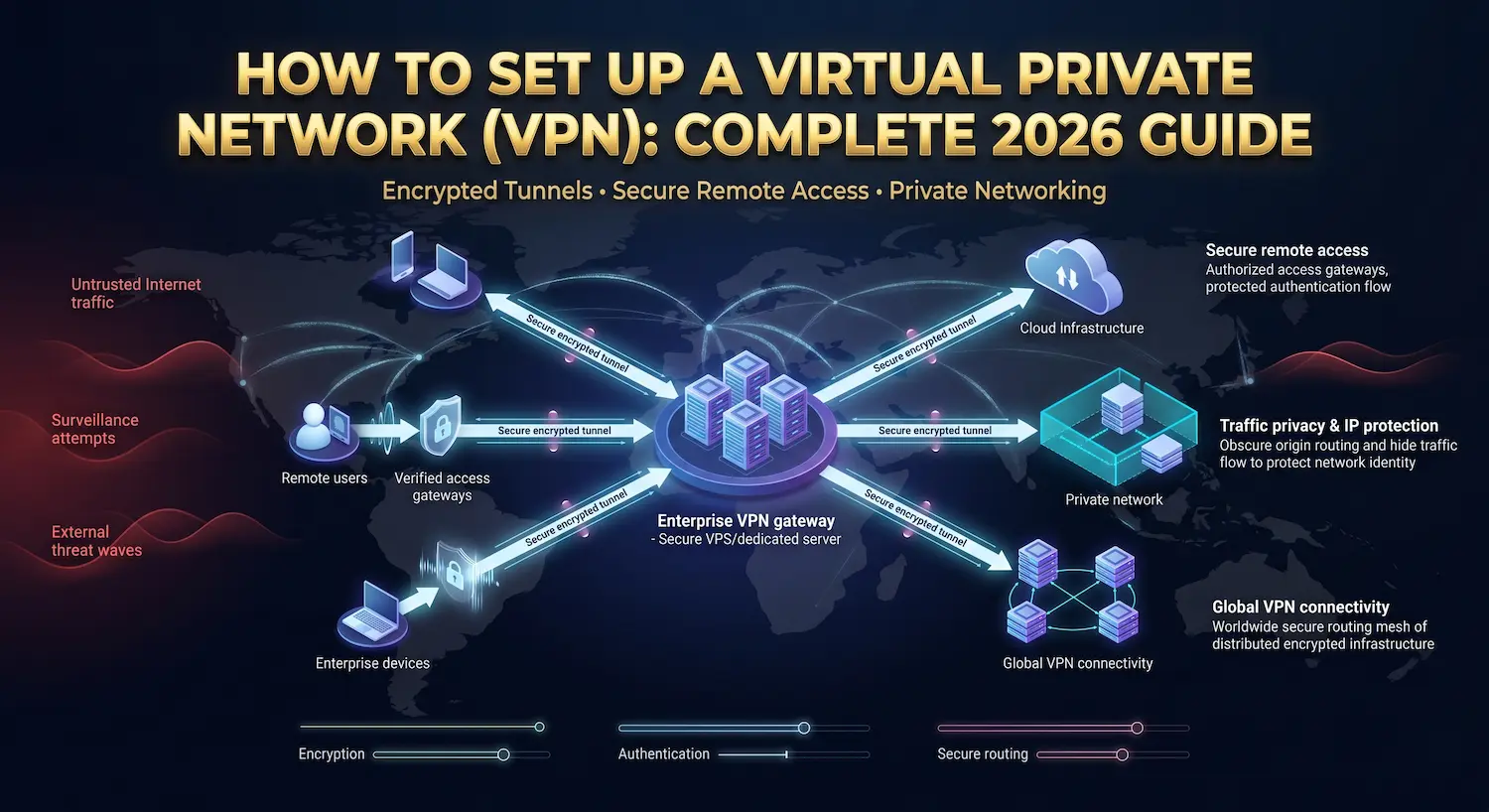
Setting up a virtual private network (VPN) is one of the most practical security steps any individual or business can take. A VPN encrypts your internet traffic and hides your real IP address from websites, your internet service provider, and anyone monitoring the network between you and your destination.
At Atal Networks, we have built and maintained server infrastructure for VPN providers, proxy services, and privacy-focused teams across 196 countries for over 15 years. This guide covers three distinct VPN setup paths: a commercial VPN app, a self-hosted WireGuard VPN on a Serveur Virtuel Linux, and a corporate VPN for remote teams. Pick the section that matches your goal and follow the steps directly.
Table des matières
- What Is a VPN?
- Pick Your VPN Type First
- VPN Protocols at a Glance
- Option A: Set Up a Commercial VPN App
- Option B: Self-Hosted WireGuard VPN on a VPS
- Option C: Corporate VPN for Remote Teams
- Speed, DNS Leaks, and Common Fixes
- Security Rules to Follow
- Questions fréquemment posées

What Is a VPN?
A VPN (virtual private network) creates an encrypted data tunnel between your device and a remote VPN server. All your internet traffic passes through that tunnel before reaching its destination.
The VPN server acts as a middleman. Websites see the VPN server’s IP address, not yours. Your internet service provider sees encrypted traffic going to one server. They cannot read the contents or see which sites you visit.
A VPN protects against: IP address exposure, network monitoring on public Wi-Fi, and ISP traffic logging.
A VPN does not protect against: Malware, phishing, cookie-based browser tracking, or legal surveillance with a valid court order.
A VPN works best as part of a broader security setup, not as your only layer of defense. Pair it with a solid incident response plan so your team knows exactly how to act if a breach occurs despite every prevention measure.
Pick Your VPN Type First
Three VPN setups exist. Each serves a different purpose. Use this table to find the right match before reading any further.
| Situation | Best setup |
| Privacy on public Wi-Fi in under 5 minutes | Option A: Commercial VPN app |
| Full control, no third-party logs | Option B: Self-hosted WireGuard on a VPS |
| Remote team accessing internal company systems | Option C: Corporate VPN server |
| Fixed IP for firewall or SSH access rules | Option B: Self-hosted WireGuard on a VPS |
| All home devices protected automatically | Option A installed on your router |
| Running a VPN or proxy business | Option B on a Serveur dédié |
VPN Protocols at a Glance
A VPN protocol defines how your device and the VPN server establish the encrypted connection. Protocol choice directly affects speed, security, and device compatibility.
| Protocol | Speed | La sécurité | Best use case |
| WireGuard | Fastest | Excellent | Self-hosted VPN, general use |
| OpenVPN UDP | Modérer | Excellent | Enterprise, firewall bypass |
| IKEv2/IPSec | Fast | Very good | Mobile devices, built-in clients |
| L2TP/IPSec | Slow | Modérer | Avoid in 2026 |
| PPTP | Fast | Poor | Never use |
We recommend WireGuard for any new VPN setup. It runs inside the Linux kernel, adds less than 5% overhead to your network speed, and uses modern cryptography: ChaCha20 for encryption, Poly1305 for authentication, and Curve25519 for key exchange. OpenVPN is the right call for enterprise environments that need complex authentication or firewall bypass over port 443.
Option A: Set Up a Commercial VPN App
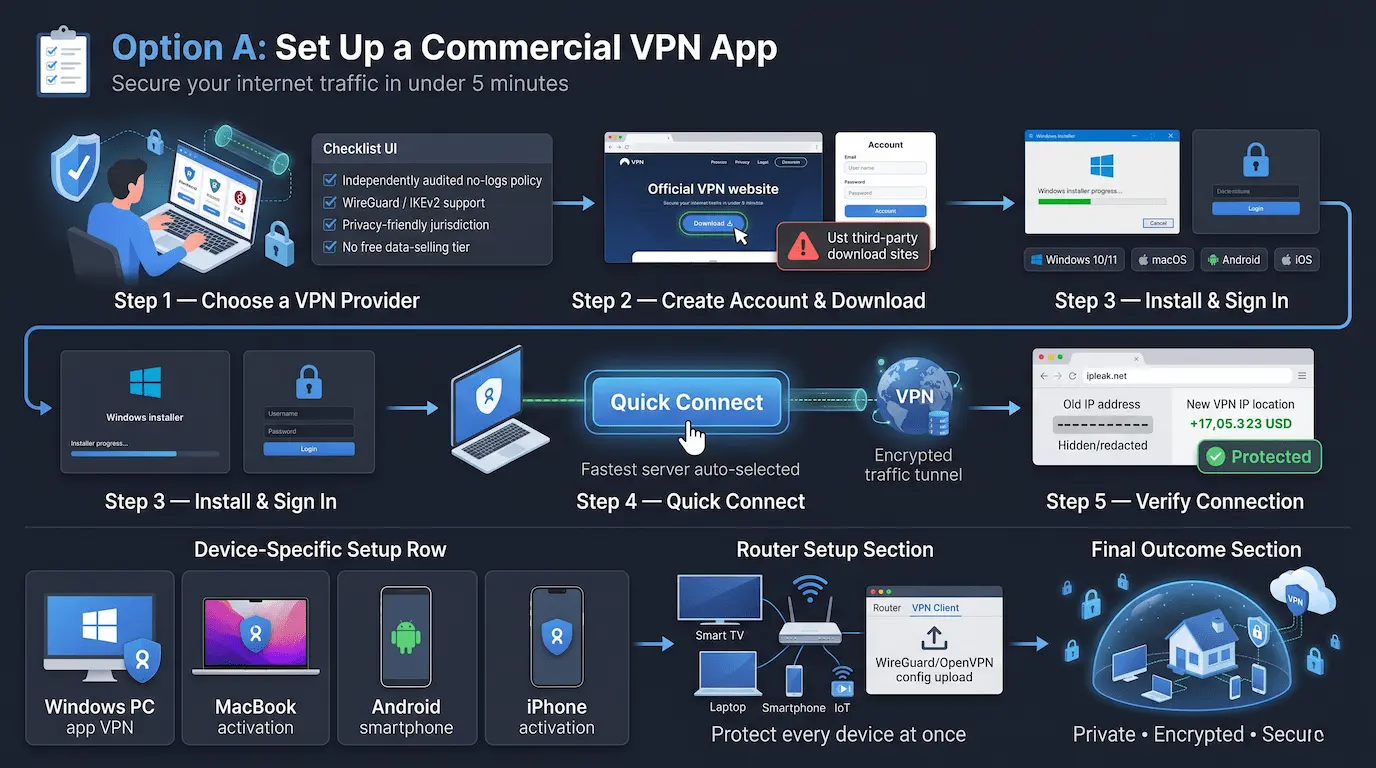
A commercial VPN app is a subscription service that connects your device to a provider’s server network. Setup takes under 5 minutes. If you prefer total control over your traffic without relying on any provider, skip ahead to Option B and run your own VPN on one of our VPS plans.
Before signing up, check for:
- An independently audited no-logs policy (Cure53 or PwC audits are credible standards)
- WireGuard or IKEv2 protocol support
- Jurisdiction outside major intelligence-sharing alliances
- No free tier that monetizes user data by selling traffic logs
Setup on Windows 10 or 11:
- Go to your VPN provider’s official website and create an account.
- Download the Windows installer directly from the provider. Avoid third-party download sites.
- Run the installer and sign in with your account credentials.
- Click “Quick Connect” to select the fastest available server automatically.
- Verify the connection at ipleak.net. Your IP should show the VPN server’s location.
Setup on macOS: Download from the provider’s website, not the Mac App Store. App Store versions often have reduced functionality due to Apple’s sandbox rules. Install, sign in, and connect.
Setup on Android: Download the official app from Google Play. Tap Connect and allow the VPN configuration prompt.
Setup on iOS: Download the official app from the App Store. Tap Connect and allow iOS to add the VPN profile.
Router setup (protects every device at once): Log in to your router’s admin panel at 192.168.0.1 or 192.168.1.1. Find the VPN Client section. Upload the configuration files from your VPN provider in WireGuard or OpenVPN format. Enable the VPN. Every device on your router, including smart TVs and IoT devices, is now protected with no individual app required.
Option B: Self-Hosted WireGuard VPN on a VPS
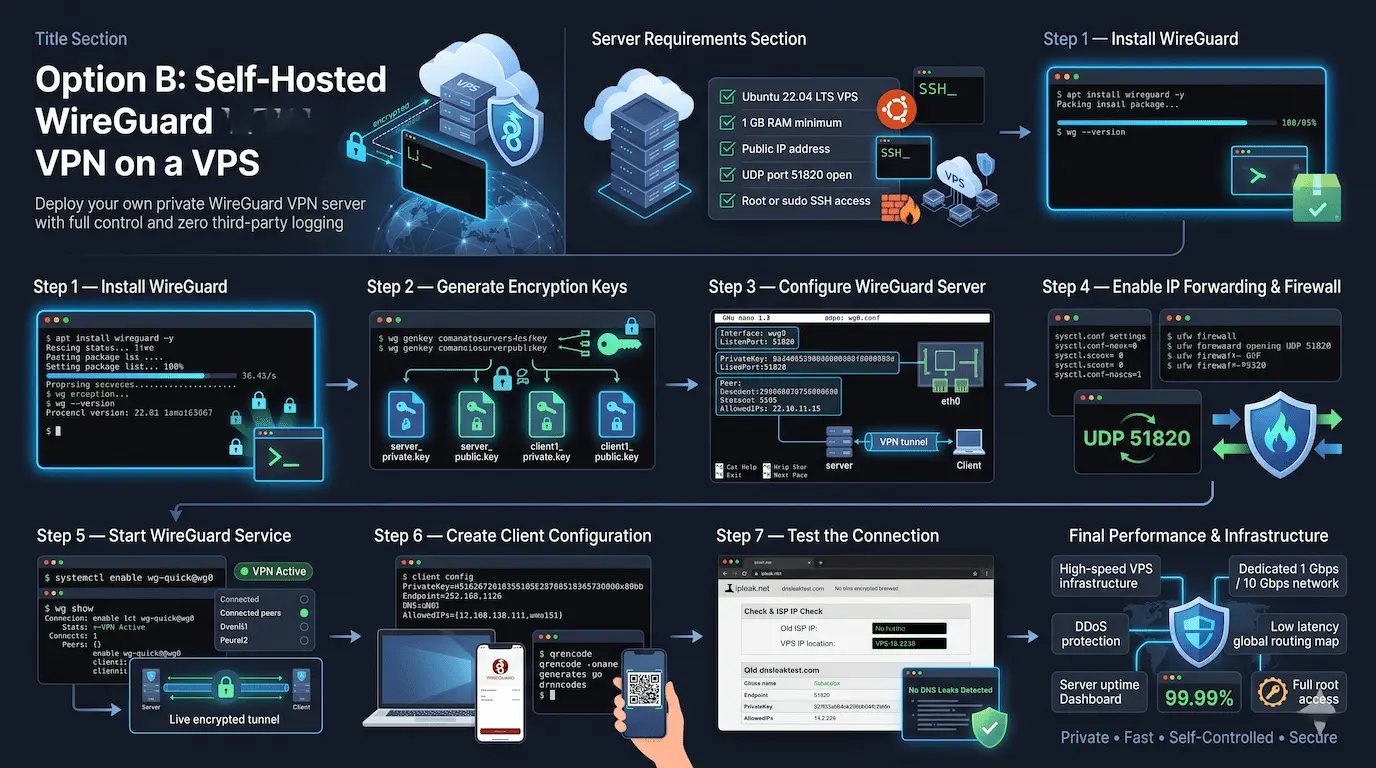
Running WireGuard on your own VPS (virtual private server) gives you a private VPN server that nobody else uses. No shared infrastructure. No third-party logging. Your encryption keys live only on your server and your devices.
This setup is right for you if you want zero third-party access to your traffic, need a static IP for firewall or SSH access rules, or are comfortable working in a Linux terminal.
Server requirements:
- A Serveur Virtuel Linux running Ubuntu 22.04 LTS, minimum 1 GB RAM
- A public IP address (standard on all our VPS plans)
- UDP port 51820 open in the firewall
- Root or sudo SSH access
Deploy your VPS and connect via SSH before starting. Run apt update && apt upgrade -y first.
Step 1: Install WireGuard
apt install wireguard -y
wg –version
Step 2: Generate server and client key pairs
wg genkey | tee /etc/wireguard/server_private.key | wg pubkey > /etc/wireguard/server_public.key
chmod 600 /etc/wireguard/server_private.key
wg genkey | tee /etc/wireguard/client1_private.key | wg pubkey > /etc/wireguard/client1_public.key
Copy the contents of all four key files. You need them in the next step.
Step 3: Create the WireGuard server configuration
nano /etc/wireguard/wg0.conf
Paste this configuration and replace all placeholder values. Find your main network interface with ip route | grep default and replace eth0 if the output shows a different name:
[Interface]
Address = 10.0.0.1/24
ListenPort = 51820
PrivateKey = YOUR_SERVER_PRIVATE_KEY
PostUp = iptables -A FORWARD -i wg0 -j ACCEPT; iptables -t nat -A POSTROUTING -o eth0 -j MASQUERADE
PostDown = iptables -D FORWARD -i wg0 -j ACCEPT; iptables -t nat -D POSTROUTING -o eth0 -j MASQUERADE
[Peer]
PublicKey = YOUR_CLIENT1_PUBLIC_KEY
AllowedIPs = 10.0.0.2/32
Step 4: Enable IP forwarding and open the firewall
echo “net.ipv4.ip_forward=1” >> /etc/sysctl.conf && sysctl -p
ufw allow 51820/udp
ufw allow OpenSSH
ufw enable
Step 5: Start WireGuard
systemctl enable wg-quick@wg0
systemctl start wg-quick@wg0
wg show
Les wg show command confirms the server is running and lists any connected peers.
Step 6: Create the client configuration
On your laptop or phone, create a text file with these contents:
[Interface]
PrivateKey = YOUR_CLIENT1_PRIVATE_KEY
Address = 10.0.0.2/32
DNS = 1.1.1.1
[Peer]
PublicKey = YOUR_SERVER_PUBLIC_KEY
Endpoint = YOUR_SERVER_IP:51820
AllowedIPs = 0.0.0.0/0
PersistentKeepalive = 25
Import this file into the WireGuard application on Windows, macOS, Android, or iOS. For mobile devices, generate a QR code from the server and scan it with the WireGuard mobile app:
apt install qrencode -y && qrencode -t ansiutf8 < /etc/wireguard/client1.conf
Step 7: Test the connection
Activate the VPN on your client device. Visit ipleak.net. Your IP should show your VPS server’s location. Run a DNS leak test at dnsleaktest.com to confirm all DNS queries route through the tunnel, not your ISP.
Your VPS infrastructure directly affects VPN performance. A WireGuard server on a quality Serveur Virtuel Linux with a dedicated 1 Gbps or 10 Gbps port, network-level DDoS protection, and low-latency routing will outperform most commercial VPN services. Our VPS plans include guaranteed resources, full root access, and 99.99% uptime backed by a 100% SLA.
Option C: Corporate VPN for Remote Teams
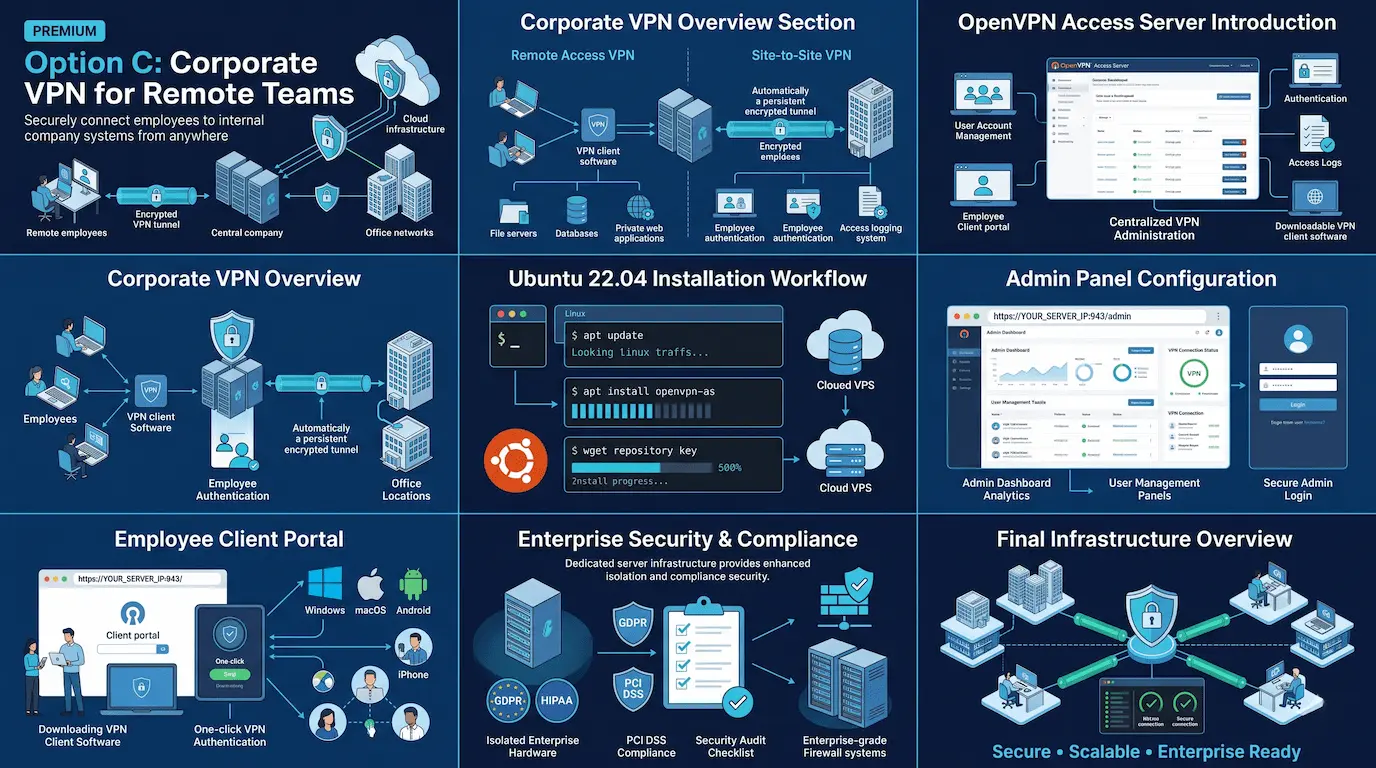
A corporate VPN connects remote employees to internal company resources such as file servers, databases, and private web applications. It requires user account management, authentication, and access logging.
Remote access VPN is the standard setup for most businesses. Each employee runs VPN client software on their device and connects to a central VPN server machine. Site-to-site VPN links two office networks together automatically without any action from individual users.
OpenVPN Access Server (openvpn.net/access-server) is the most widely deployed enterprise VPN for teams. It adds a web-based admin panel and a client portal where employees download their own preconfigured VPN client software.
Quick install on Ubuntu 22.04:
apt update && apt install -y ca-certificates wget net-tools gnupg
wget https://as-repository.openvpn.net/as-repo-public.asc -qO /etc/apt/trusted.gpg.d/as-repository.asc
echo “deb [arch=amd64 signed-by=/etc/apt/trusted.gpg.d/as-repository.asc] http://as-repository.openvpn.net/as/debian jammy main” > /etc/apt/sources.list.d/openvpn-as-repo.list
apt update && apt install -y openvpn-as
The admin panel opens at https://YOUR_SERVER_IP:943/admin. Enable TOTP multi-factor authentication for all user accounts. Share the client portal link at https://YOUR_SERVER_IP:943/ with your team.
For compliance workloads under GDPR, HIPAA, or PCI DSS, a Serveur dédié provides physical resource isolation that a shared VPS cannot match.
Speed, DNS Leaks, and Common Fixes
Speed loss by protocol:
| Protocol | Typical speed reduction |
| WireGuard | 3 to 8% |
| OpenVPN UDP | 10 to 20% |
| IKEv2/IPSec | 5 to 15% |
Reduce speed loss: Use WireGuard. Connect to a VPN server close to your physical location. Use UDP mode, not TCP. Run the VPN on a server with a 1 Gbps or 10 Gbps uplink.
DNS leak protection: Without the correct DNS setting, your DNS queries bypass the VPN tunnel and reach your ISP’s DNS servers. This exposes which sites you visit even while connected to the VPN. Set DNS = 1.1.1.1 in your WireGuard client configuration file. Verify at dnsleaktest.com.
Kill switch: A kill switch cuts your internet connection if the VPN drops, preventing your real IP from being exposed. Enable it in your VPN app settings. For WireGuard, AllowedIPs = 0.0.0.0/0 routes all traffic through the tunnel and produces the same effect.
Common fixes:
- VPN not connecting: run ufw status on the server. Confirm UDP port 51820 is allowed.
- No internet through VPN: run cat /proc/sys/net/ipv4/ip_forward. The result should be 1. If it shows 0, re-run sysctl -p.
- IP address not changing: confirm AllowedIPs = 0.0.0.0/0 is set in your client configuration.
Security Rules to Follow
Keep the VPN server updated. Cours apt update && apt upgrade -y at least weekly. Set up automatic security patches with apt install unattended-upgrades -y.
Disable password-based SSH login. Use SSH key authentication only. Password SSH access leaves your server open to automated brute-force attacks.
Enable fail2ban. Fail2ban blocks IP addresses that repeatedly fail SSH login. Install it with apt install fail2ban -y.
Rotate WireGuard keys every 3 to 6 months in high-security environments. Generating fresh key pairs limits the damage window if a key is ever compromised.
Know the limits. Cookie tracking, browser fingerprinting, malware, and phishing attacks all work independently of your VPN. Pair the VPN with a privacy-focused browser, endpoint protection software, and two-factor authentication across your accounts.
Questions fréquemment posées
Is setting up a VPN legal?
VPNs are legal in most countries. A small number of countries restrict their use, including China, Russia, and Iran. Using a VPN does not change the legality of your online activity.
Can we set up a VPN for free?
A self-hosted WireGuard VPN uses open-source software at no cost. The only expense is the VPS server. Our Linux VPS plans start at competitive monthly prices. Free commercial VPN services typically sell user data to generate revenue.
How long does VPN setup take?
A commercial VPN app takes 3 to 5 minutes. A self-hosted WireGuard server takes 45 to 60 minutes for a first-time setup. An OpenVPN Access Server deployment for a team takes 2 to 4 hours, including user configuration and connection testing.
What is the difference between a VPN client and a VPN server?
A VPN server is the remote machine that accepts incoming connections and routes encrypted traffic. It holds a public IP address and runs VPN software listening for connections. A VPN client is the application on your device that connects to the server and creates the encrypted tunnel. Self-hosting puts you in control of both sides.
Can we run a VPN without a third-party provider?
Yes. Deploy a VPS, install WireGuard (free and open source), and follow Option B in this guide. No subscription is required. Your traffic passes through your own server only, and no third party holds access to your logs.
Does a router VPN protect all devices on the network?
Yes. A router running a VPN client routes every connected device through the VPN tunnel automatically. Smart TVs, gaming consoles, and IoT devices that cannot install VPN apps are all covered. Routers running AsusWRT, GL.iNet firmware, DD-WRT, or OpenWrt all support router-level VPN client configuration.
Notre Linux VPS plans give you full root access, guaranteed CPU and RAM, 1 Gbps or 10 Gbps network ports, DDoS protection at the network level, and a 99.99% uptime SLA. For larger VPN or proxy operations, our bare metal infrastructure provides physical resource isolation with no shared neighbors affecting your performance.
Talk to our team about which server configuration fits your VPN setup.
Published by Atal Networks, global hosting provider serving 36,000+ clients across 196 countries with VPS hosting, dedicated servers, bare metal infrastructure, and VPN/proxy server solutions.